
Storage
Keep signatures and entered values safely with each contract, and regenerate PDFs when needed (choose 1-year or 3-year storage).
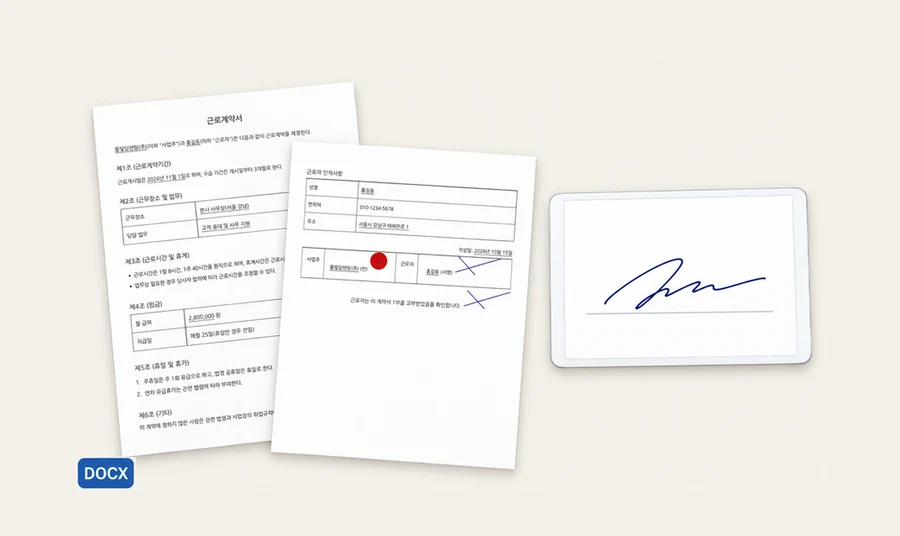
계약서 서명 · 워드형
 Rental field representative
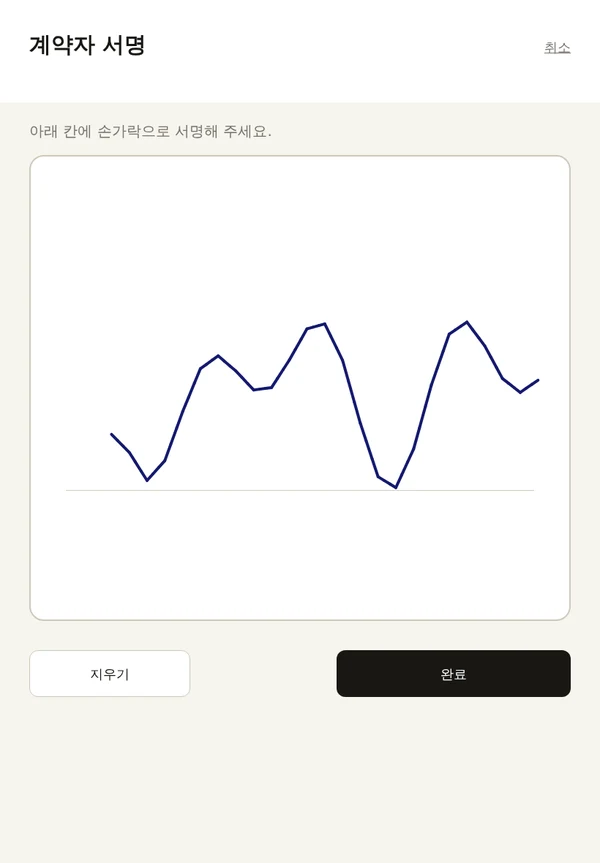
Once installation is done, I hold out the tablet and they sign with a finger right away!
 Ebook Banana manager
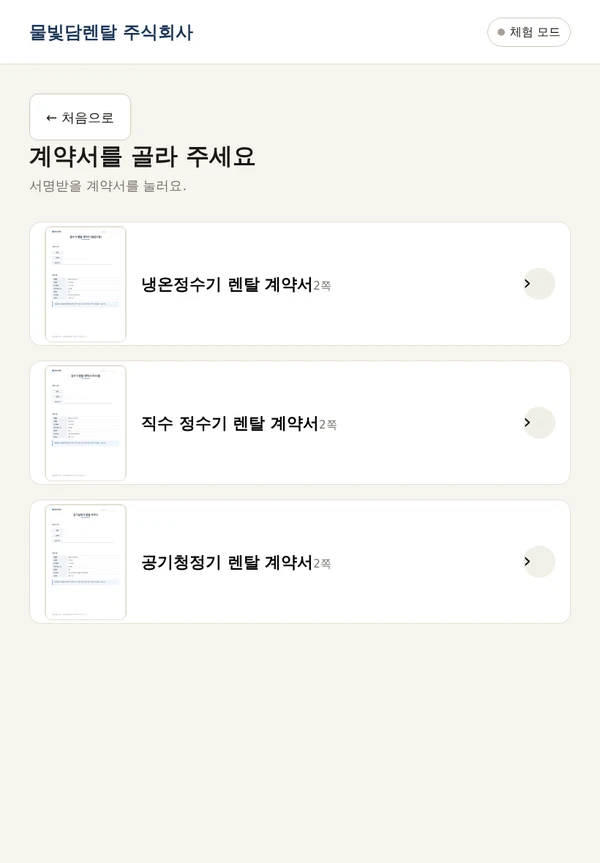
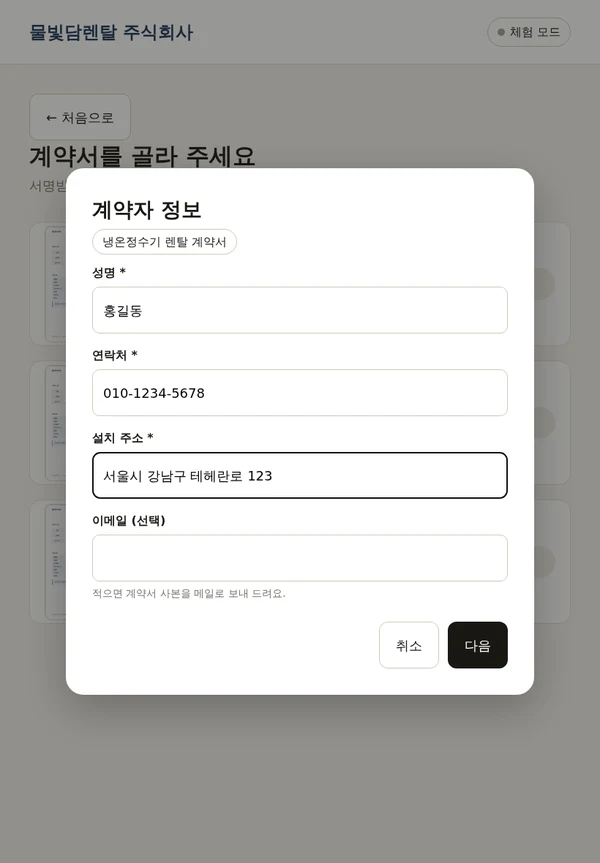
Choose the contract, enter the name and phone number, then tap the signature field to open a large signing pad. You can use a phone too.
 Rental field representative
So not just anyone can sign from a link, right?
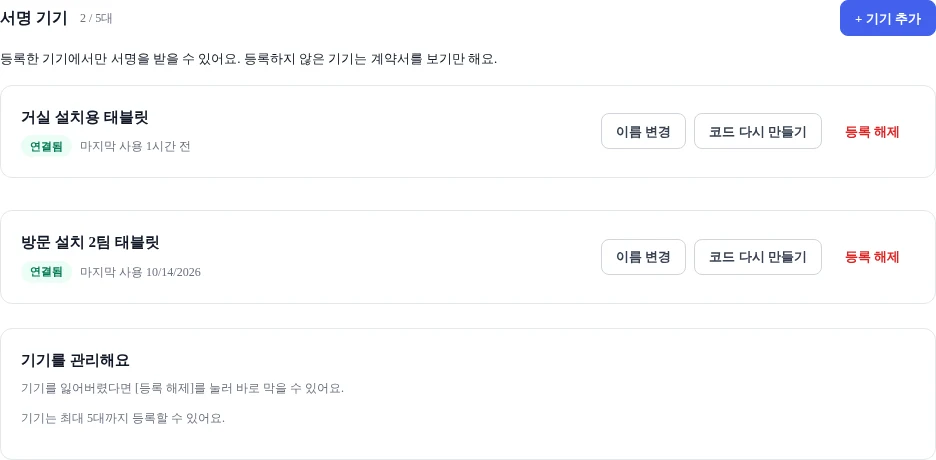
Ebook Banana managerAdd a device in the admin screen and you get an 8-digit code. Enter it once on that tablet and you are done. Unregistered devices can only view contracts. Up to 5 devices; remove one immediately if it is lost.

 Customer
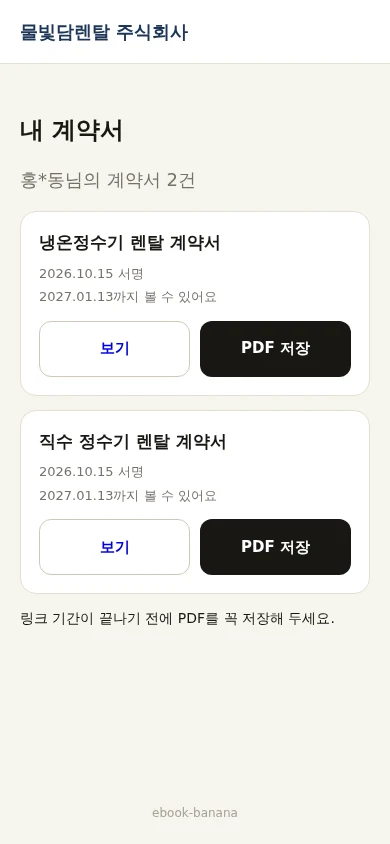
I received my contract right away and saved it on my phone.
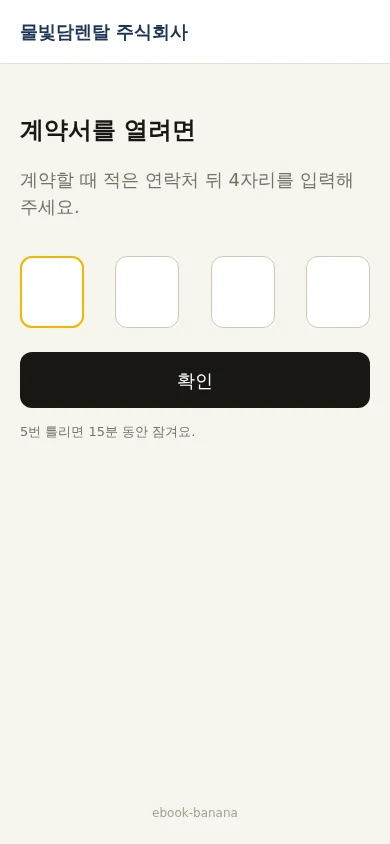
Ebook Banana managerOpening the QR checks the last 4 digits of the phone number. It locks after 5 wrong attempts, and the link stays open for 90 days.
 Rental field representative
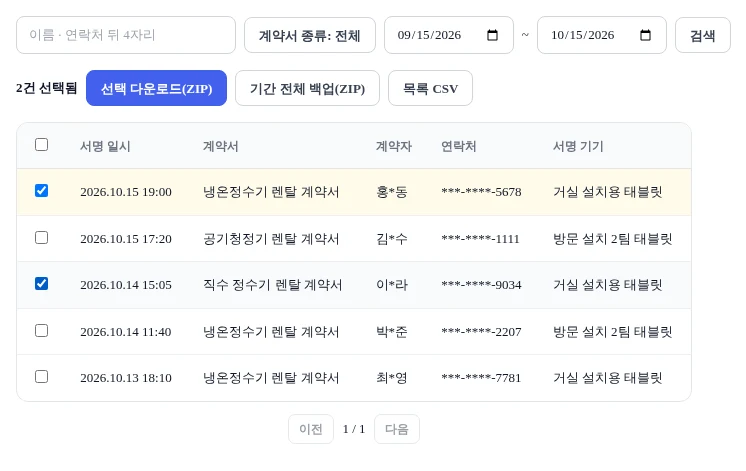
Customers get it right away with the QR, and you can find it easily in the admin screen.
Ebook Banana managerSearch by name, last 4 digits of the phone number, contract type, or period. Download just the ones you need as a ZIP, or back up an entire period.
 Rental field representative
It is handy to upload contracts for water purifiers and air purifiers, then pick the one I need.
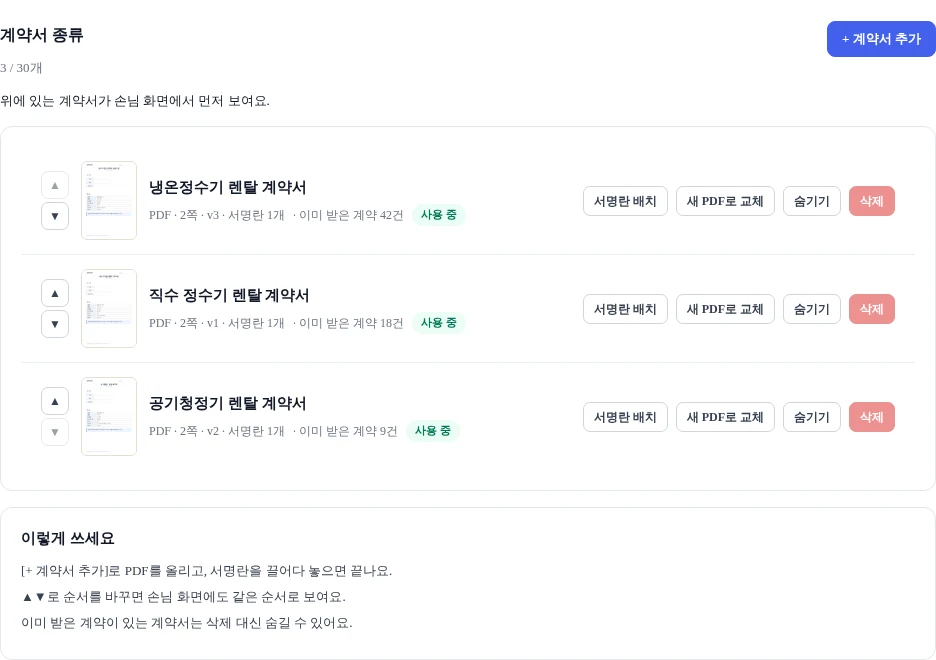
Ebook Banana managerUpload a PDF with [+ Add contract], then drag the signature fields into place. Put key products at the top with ▲.
Keep signatures and entered values safely with each contract, and regenerate PDFs when needed (choose 1-year or 3-year storage).
Encrypt phone numbers and entered values · signing on registered devices only · customer 4-digit check · viewing history · sub-admins need separate permission to see contract history
Business plan resources (15 ebooks · 10 GB traffic per day)
= Contract signing template (permanently in your account) + 1 month of Business
Continue afterward with Business at 10,000 KRW per month
No need to buy the template again (pay for the pass again and continue right away)
No limit on contract types or signatures
If you already have Business, extend it by 1 month
When the pass ends, only new contracts stop; existing contracts remain available to view and download
Does it disappear right away when it ends? — We organize it after a notice email
Purchase — Business is applied automatically for 1 month
New ebook → Contract signing template
Upload the contract PDF and place signature fields · business seal
Register the tablet → first contract
Tell others about your experience using this template.
Log in to write a review